Build your first website with Claude Code: a non-dev's walkthrough

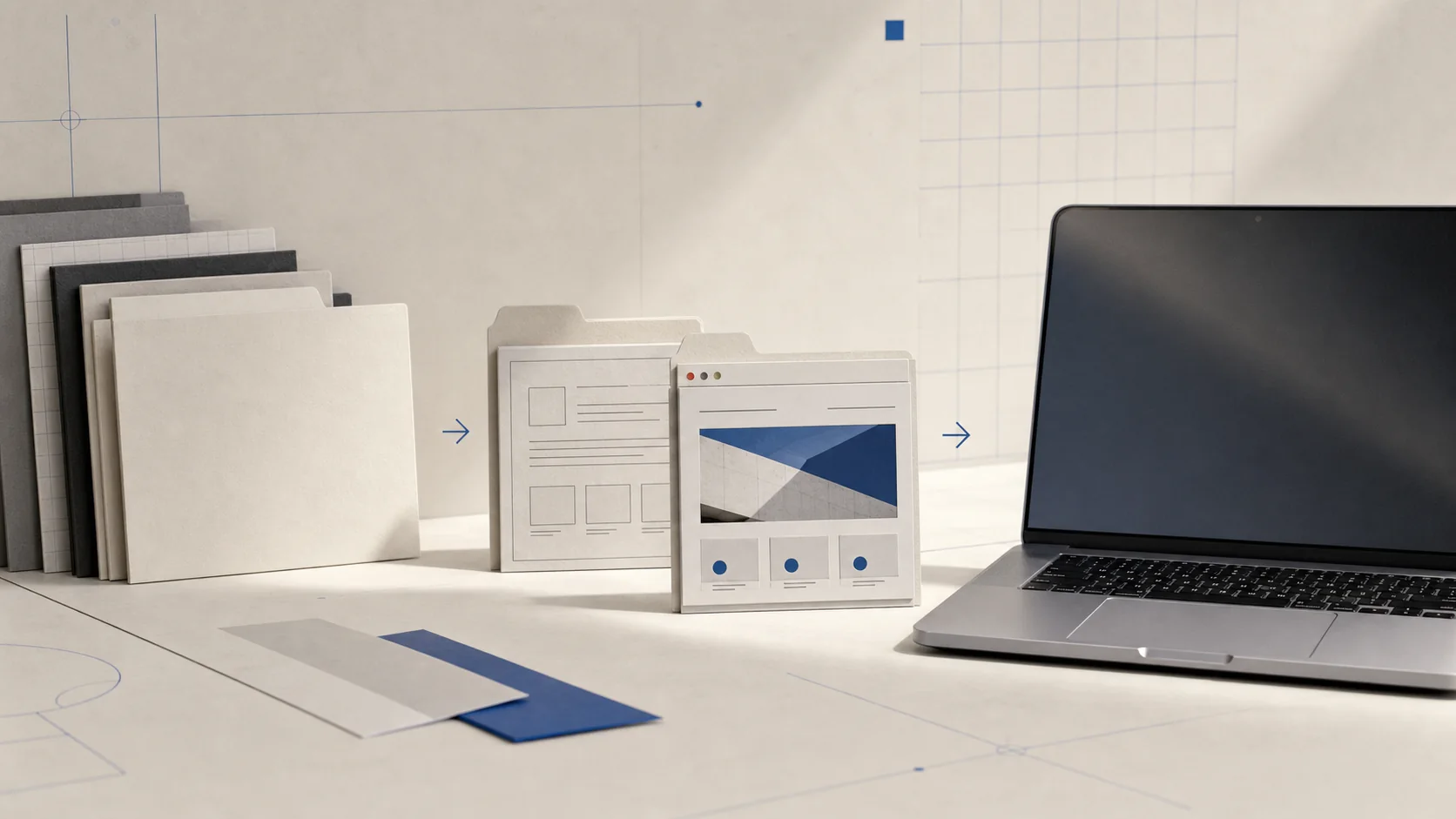
A non-dev can build a first website with Claude Code using the desktop app instead of a terminal. Here's the current walkthrough.
The short answer
Yes, a non-dev can build a working local website with Claude Code. You don't need a terminal, Node.js, or prior coding experience, but the time required depends on the site and how many revisions you make.
What you do need: a paid Claude plan (Pro or higher, Claude Code isn't on the Free tier) and the Claude desktop app, which includes Claude Code built in. This guide walks through the exact steps: install, describe the site you want, preview it, fix things by pointing at them, and undo mistakes.
This site isn't affiliated with Anthropic. If you want the broader case for why a non-dev would use Claude Code at all, Claude Code for non-devs covers that; this guide is the hands-on walkthrough.
What you need before you start
- A Pro, Max, Team, or Enterprise Claude plan. Claude Code requires one of these, confirmed on both the CLI quickstart and desktop quickstart: it's not on the Free plan. See Claude Code pricing if you haven't picked one yet.
- The Claude desktop app for macOS, Windows, or Linux (beta). "The desktop app includes Claude Code. You don't need to install Node.js or the CLI separately," per the desktop quickstart.
- A rough idea of the site you want; a one-line description is enough to start.
Skip the web version (claude.ai/code) for this one. It's explicitly a research preview running on Anthropic's own cloud servers, and "sessions need access to your GitHub repositories to clone code and push branches," meaning no access to your local files at all. With no existing GitHub repo for a first project, the desktop app's Local mode is the simpler start. Source: Claude Code on the web.
The walkthrough
Download and open the desktop app
Sign in with your Anthropic account. You'll see three tabs: Chat, Cowork, and Code. Click Code.
Choose Local, then Select folder
Create a new, empty folder for this project first (call it something like my-portfolio-site). The docs' own tip: "Start with a small project you know well."
Type your first prompt
Something like: "Build me a one-page portfolio site with a hero section with my name and title, an about section, a projects grid with three placeholder cards, and a contact section with an email link. Use a clean, modern look with a dark background."
Review the diff, then accept
Claude proposes the files and shows exactly what it's adding before anything touches disk. Click accept, or accept edits mode if you'd rather stop reviewing every single change (see below).
Preview it
Claude starts a local server automatically after editing project files and opens it in the Browser pane, or click an HTML file path in the chat to open it directly.
Review and fix
Keep the preview open, describe the button, color, or spacing issue you can see, and ask Claude to revise it. You do not need to name CSS selectors yourself.
Undo if something goes sideways
Type /rewind or press Esc twice on an empty prompt to open checkpoints and restore an earlier version of the code, the conversation, or both.
Before you call the site finished, use the separate build, test, fix, and retest workflow to turn a confident completion message into link checks, test output, and browser evidence you can inspect.
Manual mode vs. Accept Edits vs. Auto
The Code tab starts in Manual mode by default: Claude proposes a change, shows a diff, and waits for you to click accept before anything is written to disk. That's the safest way to spend your first session, since you see every file before it exists.
Once you trust what's coming out, Accept Edits mode turns off the per-change approval for file edits specifically, while still asking before anything riskier, like a command outside the project folder. That's the realistic "less friction" mode for a beginner, not Auto.
Auto mode goes further: it advances through a task without asking, with a second model checking its work as it goes. It's not on by default, won't show up as an option until enabled in Desktop settings, and needs a roughly Opus 4.6-class or Sonnet 4.6-class model or above. Source: Choose a permission mode.
You're also never stuck waiting: type a correction and press Enter to steer Claude mid-task without stopping the run, or click stop to interrupt immediately. Source: desktop quickstart, "Interrupt and steer".
'%3E%3Cstop%20offset%3D'0'%20stop-color%3D'hsl(238%2074%25%2055%25)'%2F%3E%3Cstop%20offset%3D'1'%20stop-color%3D'hsl(244%2066%25%2020%25)'%2F%3E%3C%2FlinearGradient%3E%3C%2Fdefs%3E%3Crect%20width%3D'1000'%20height%3D'450'%20fill%3D'url(%23g)'%2F%3E%3Cg%20stroke%3D'%23eef1fb'%20stroke-opacity%3D'0.15'%20stroke-width%3D'49.5'%3E%3Cline%20x1%3D'160'%20y1%3D'499.5'%20x2%3D'385'%20y2%3D'-49.5'%2F%3E%3Cline%20x1%3D'278.8'%20y1%3D'499.5'%20x2%3D'503.8'%20y2%3D'-49.5'%2F%3E%3C%2Fg%3E%3C%2Fsvg%3E)
Honest limits and what tends to break first
A few things trip up first-timers specifically, worth knowing going in:
- A local preview isn't a live website. A file opened via
file://or a dev server atlocalhost:3000only exists on your machine, nobody else can see it until you publish it to a realhttps://address (see below). This confuses more beginners than anything else in this walkthrough. - Checkpoints don't cover everything.
/rewindtracks Claude's file edits, but not files changed through Bash commands Claude runs, likermormv. For anything you'd hate to lose, use real version control (Git) once the site takes shape, not just checkpoints. Source: Checkpointing docs. - Auto mode has a safety net that Manual and Accept Edits don't. Current tooling includes a classifier that tries to block secrets (API keys,
.envcontents) from ending up in a commit, push, or issue text unless you named both the source and destination yourself, but that check is Auto-mode-specific. Source: permission-modes, "What the classifier blocks by default".
.env file into the chat, and don't let a site with real secrets in it go to a public GitHub repo. Keep the repo private, or better, keep secrets out of the codebase entirely and add them through your hosting provider's environment variable settings instead.How to put it online, briefly
Once the site looks right locally: create a GitHub repository, push your code, then connect that repository to a host that auto-deploys on every push. Vercel is the most common first choice for a simple site like this, with Cloudflare Pages and self-hosted options like Dokploy as alternatives. For the full step-by-step, see how to put your Claude Code website online.
Hosting and domain terms vary by provider and change over time. Check the host's current plan rules, especially commercial-use restrictions, and your registrar's renewal price before publishing. That whole flow is its own topic for a dedicated guide, not a rushed section here.
Can I build a website with Claude Code without coding?
Yes. You describe what you want in plain English, Claude Code writes the actual HTML, CSS, and any other files, and you review and approve the changes before they're saved. You don't need to read or write code to get a working site, though understanding roughly what a "file" and a "folder" are helps.
Is Claude Code free to build a website?
No. Claude Code requires a paid plan, Pro at minimum, it's not available on the Free tier. See Claude Code pricing for what each tier costs and what you get.
How do I put my Claude Code website online?
Push the project to a GitHub repository, then connect that repository to a host like Vercel that deploys automatically on every push. Your local preview at localhost is never visible to anyone else until this step is done.
Do I need to know how to use a terminal for this?
No, not for the desktop app path in this guide. The Claude desktop app includes Claude Code and works entirely through its own interface, no separate terminal or command-line install required. A terminal-based CLI version exists too, but it's not the easiest starting point for a first project.
If you're still deciding whether Claude Code is worth it before your first site, Claude Code for non-devs makes that case in more depth, and how to use Claude covers the regular chat interface if you want something lighter than a full coding tool. For everything else in your first week, getting started has the broader walkthrough.